Your eBook cover has one job before anything else.
It needs to make people stop.
Before someone reads your introduction, checks your chapters, or decides whether your lead magnet is worth downloading, they see the cover. If the cover looks messy, unclear, or quickly thrown together, the content inside has to work much harder.
This is where many creators, marketers, coaches, consultants, and small business owners get stuck.
They may have a strong eBook idea. They may even have a great title. But the image they want to use on the cover does not quite work. The subject has a distracting background. The visual is too busy. The person, product, object, or design element gets lost. The cover starts looking like a collage instead of a polished digital product.
A simple background removal workflow can help.
In this guide, we’ll look at how to use Creative Fabrica’s free local AI background remover to clean up an image, then use StoryLab.ai’s Free eBook Cover Maker to turn that cleaned-up image into a professional-looking eBook cover.
For creators who want a practical free local AI background remover workflow, this combination is a useful way to prepare stronger visuals before designing the actual cover.
Chapters
Why eBook Cover Images Often Look Messy
A good eBook cover is not only about the image.
It is about the relationship between the image, title, subtitle, author name, colors, spacing, and readability.
Many covers look weak because the background image is doing too much.
Common problems include:
- The image background is too busy.
- The title is hard to read.
- The subject blends into the background.
- The cover has too many visual elements.
- The image was not created for a vertical cover format.
- A product or person is surrounded by clutter.
- The background colors fight with the text.
- The focal point is in the wrong place.
- The cover looks like a social media post instead of a book cover.
Background removal can solve some of these problems by separating the main subject from the original image.
Once the subject is isolated, you can place it on a cleaner background, add a dark overlay, use a gradient, or position the image more intentionally inside the cover.
That gives the title room to breathe.
And yes, book titles need breathing room too. Otherwise they look like they are trapped in a design cupboard.
What This Workflow Is Best For
This workflow is useful when you have an image element that would work well on a cover if the original background were removed.
For example:
- A coach’s portrait for a business eBook
- A product image for a buyer’s guide
- A laptop image for a marketing report
- A plant or food image for a wellness guide
- A journal or notebook image for a productivity workbook
- A mockup image for a digital product guide
- A speaker photo for an event resource
- A symbolic object for a thought leadership eBook
- A branded character or illustration
- A design element you want to place over a clean background
The goal is not to remove every background from every cover image.
Sometimes a full image background is the right choice. A dramatic landscape, office scene, abstract illustration, or branded texture can work beautifully as a full cover background.
Use background removal when the original background distracts from the subject or makes the title difficult to read.
Step 1: Choose the Right Image for Your eBook Cover
Start with the strongest image you have.
Background removal works best when the main subject is clear and separated from the background.
Good image choices include:
- A person against a simple background
- A product with clear edges
- A clean object on a table
- An illustration with a clear subject
- A high-resolution image
- A design asset with enough contrast
Avoid starting with:
- A blurry image
- Tiny screenshots
- Low-resolution files
- Busy group photos
- Subjects with unclear edges
- Images where the subject and background are similar colors
- Photos with important details hidden by shadows
For an eBook cover, also think about the final layout.
Ask:
- Will this image work in a vertical format?
- Is there room for a title?
- Does the image match the promise of the eBook?
- Will the cover still look good as a small thumbnail?
- Does the image feel relevant to the reader?
A beautiful image is not automatically a good cover image.
If your eBook is called “The Practical Guide to B2B Lead Generation,” a moody mountain landscape might look impressive but confuse the reader. Unless, of course, your lead generation strategy involves hiking. In that case, carry on.
Step 2: Remove the Background With Creative Fabrica
Open Creative Fabrica’s background remover tool and upload the image you want to prepare for your cover.
The background remover can help isolate the subject so you can use it more flexibly in your cover design.
A simple workflow:
- Upload your image.
- Let the background remover detect the subject.
- Review the cutout.
- Download the result as a transparent PNG.
- Keep the original file in case you need to try again.
This is especially useful when you want to use a person, object, product, or visual element as the main cover subject instead of using the full original photo.
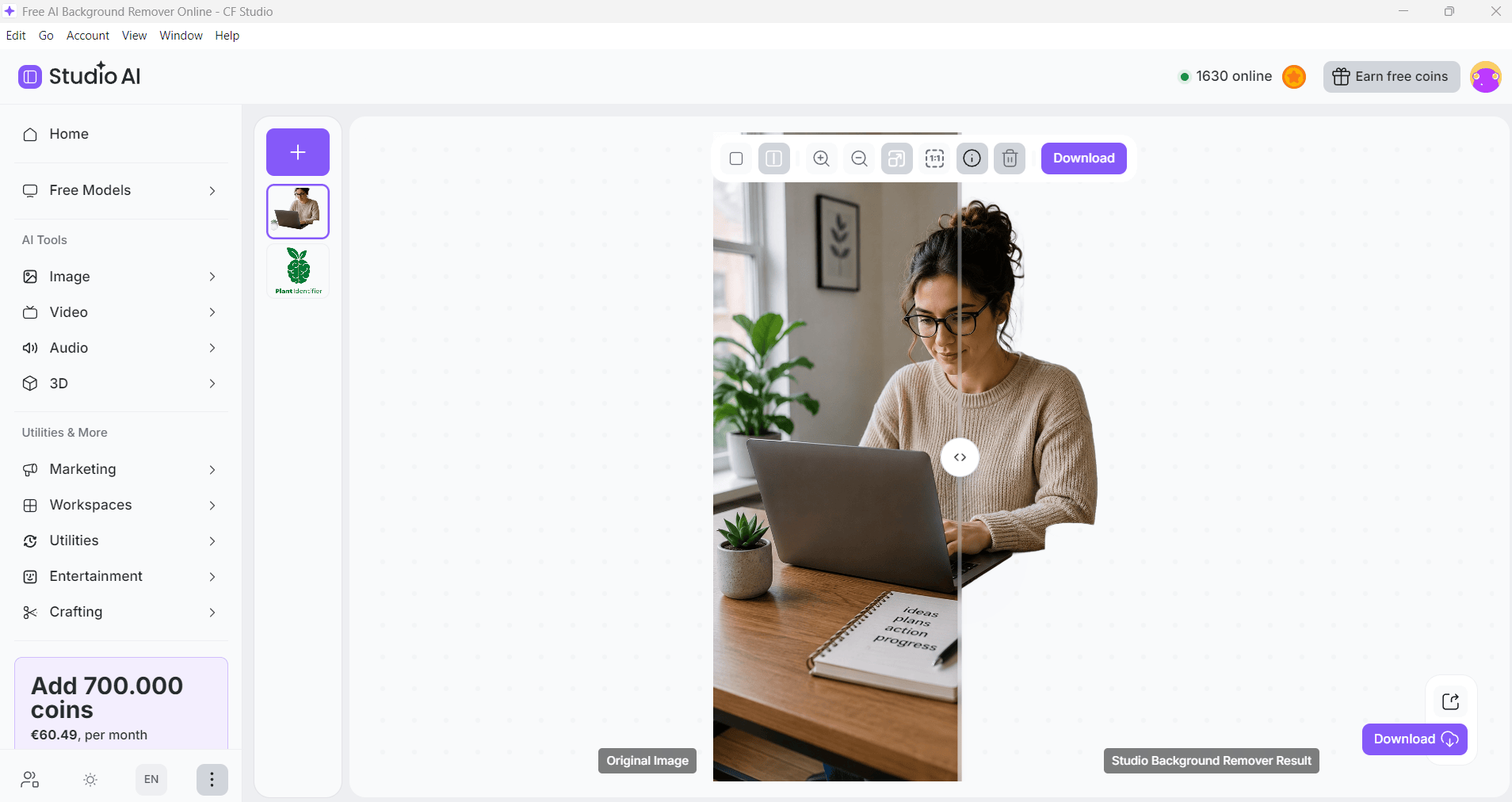
Here’s what it looks like for us when using the background remover:
Step 3: Check the Cutout Before Designing
Do not rush straight into the cover maker.
First, check the background-removed image.
Look carefully at:
- Hair
- Hands
- Product edges
- Transparent objects
- Thin lines
- Shadows
- Small details
- Text on the object
- Corners and borders
- Stray background pixels
For most eBook covers, the image does not need to be microscopically perfect. But visible rough edges can make the final cover look less polished.
Test the transparent PNG on both dark and light backgrounds.
A cutout may look good on a checkerboard preview but reveal strange edge pixels once placed on a colored cover.
Step 4: Open StoryLab.ai’s Free eBook Cover Maker
After preparing your image, open StoryLab.ai’s Free eBook Cover Maker.
This tool lets you create a cover directly in your browser without needing complicated design software.
You can:
- Choose a book-friendly cover size
- Select a layout
- Upload your own background image
- Add your title
- Add a subtitle or hook
- Add your author or brand name
- Change fonts
- Adjust text colors
- Add overlays
- Apply image filters
- Add design elements
- Export the final cover as PNG or JPG
This makes it useful for lead magnets, reports, guides, workbooks, digital publications, and eBooks used in marketing funnels.
Step 5: Add the Background-Removed Image to Your Cover
Upload the transparent PNG you created with the background remover.
Now you can place the image more intentionally.
For example, you could:
- Put a portrait on the bottom half of the cover
- Place a product image in the center
- Add a symbolic object behind the title
- Use a cutout as a side element
- Combine the cutout with a gradient background
- Add a dark overlay behind white text
- Create a clean minimal cover with one strong visual
The key is to avoid making the image compete with the title.
The reader should be able to understand the cover quickly.
A good hierarchy might be:
- Title
- Main visual
- Subtitle
- Author or brand name
Not every cover needs all four elements to be loud.
If everything is shouting, nothing is heard.
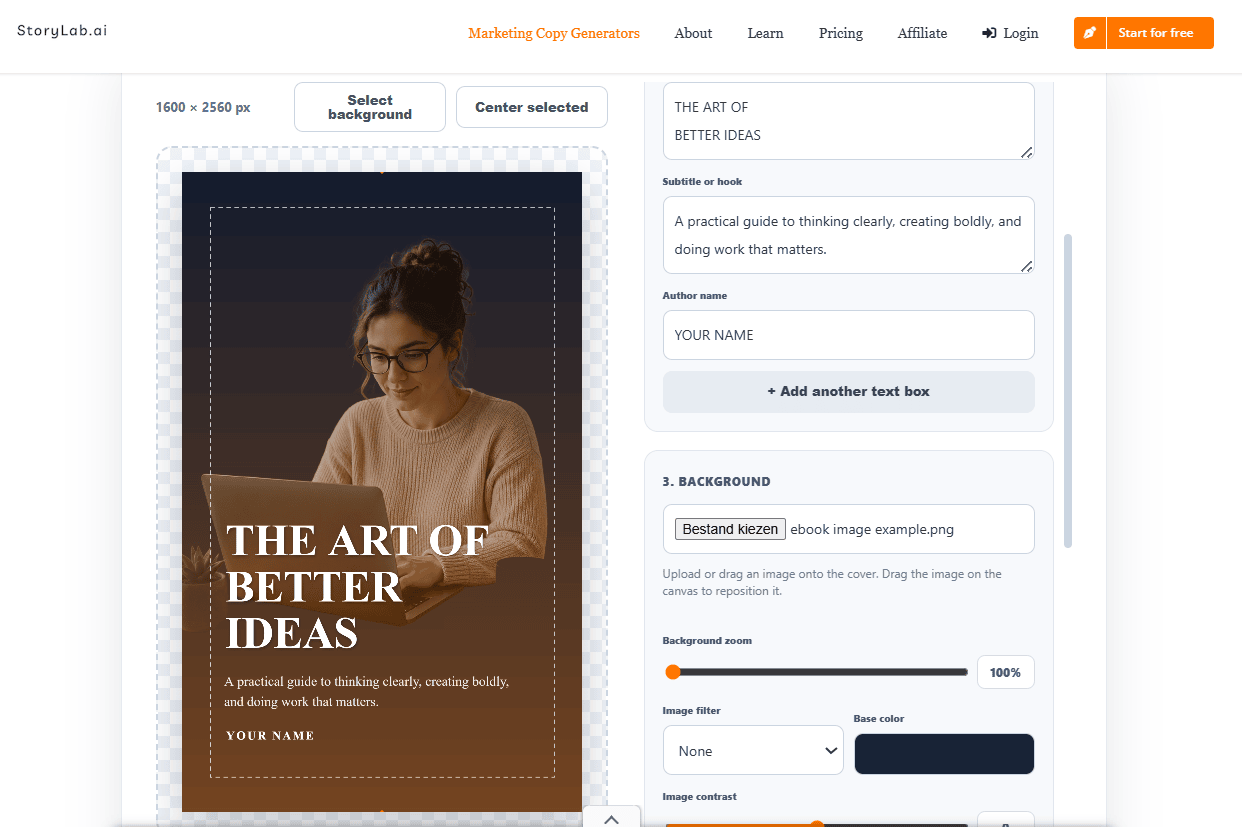
Here’s what it looks like for us:
Example Use Case: Creating a Marketing eBook Cover
Let’s say you are creating an eBook called:
The Small Business Guide to Better Content Ideas
You have an image of a notebook, pen, and laptop on a messy desk. The desk background is too cluttered, but the notebook and laptop would work well as a cover element.
Here is the workflow:
- Upload the image to Creative Fabrica’s background remover.
- Remove the desk background.
- Download the notebook/laptop cutout as a transparent PNG.
- Open StoryLab.ai’s eBook Cover Maker.
- Choose a vertical eBook cover size.
- Add a clean gradient background.
- Upload the cutout.
- Place it in the lower part of the cover.
- Add the title at the top.
- Add a subtitle such as: “A simple framework for planning content your audience actually wants.”
- Add your name or brand.
- Add a subtle overlay or design element if needed.
- Download the finished cover.
The result is cleaner than using the original messy desk image as the full background.
The title becomes easier to read, and the image still supports the topic.
Example Use Case: Creating a Coaching eBook Cover
Now imagine a coach creating a free eBook called:
Reset Your Week
The coach has a portrait photo that looks friendly and professional, but the background is distracting.
The workflow:
- Remove the portrait background.
- Download the portrait as a transparent PNG.
- Open StoryLab.ai’s eBook Cover Maker.
- Choose a minimal layout.
- Add a soft background color.
- Place the portrait on one side.
- Add the title and subtitle on the other side.
- Use a clean, readable font.
- Export the final cover.
This creates a more personal cover without the messy original photo background.
It also helps the author look more connected to the eBook instead of feeling like a random photo was pasted behind the text.
Example Use Case: Creating a Product Guide Cover
For a product guide, the main image may be the product itself.
If you sell software, courses, templates, printables, merchandise, or digital products, you can use a cutout image to create a cleaner eBook cover.
For example:
How to Plan Your First Online Course
You could use:
- A laptop cutout
- A workbook image
- A course mockup
- A tablet screenshot
- A simple icon
- A branded product image
Remove the background from the product or device image first. Then place it on a clean cover background in StoryLab.ai’s eBook Cover Maker.
This is useful for:
- Lead magnets
- Course guides
- Product onboarding PDFs
- Customer education resources
- Downloadable templates
- Sales enablement material
- Webinar handouts
A clean product cutout often looks more professional than a full screenshot or busy mockup.
When to Use a Background-Removed Image on an eBook Cover
Use this workflow when:
- You want the cover to look cleaner.
- The image background distracts from the title.
- You need more control over layout.
- You want to place the subject on a branded background.
- The original image is good but the background is not.
- You are creating a lead magnet or business guide.
- You want the cover to feel more designed and less like a raw photo.
- You need a transparent PNG for flexible placement.
Do not use this workflow when:
- The full background is part of the story.
- The photo already works beautifully as a complete cover.
- Removing the background makes the image look unnatural.
- The image is too low quality.
- The cover needs a more editorial or photographic style.
The best design decision is not always “remove the background.”
The best decision is the one that makes the cover clearer and more compelling.
eBook Cover Image Ideas by Topic
| eBook topic | Image to remove background from | Cover direction |
|---|---|---|
| Marketing guide | Laptop, notebook, phone, campaign mockup | Clean business cover with bold title and digital workspace visual |
| Coaching workbook | Author portrait, journal, coffee cup, planner | Warm personal cover with soft background and clear promise |
| Recipe eBook | Dish, ingredient, kitchen object | Fresh cover with food cutout and bright title |
| Fitness guide | Person exercising, gym item, shoes, water bottle | Dynamic cover with strong contrast and simple headline |
| Design resource | Color palette, tablet, design mockup | Creative cover with clean shapes and visual hierarchy |
| Personal finance guide | Calculator, coins, notebook, phone | Trustworthy cover with simple colors and practical feel |
| Productivity eBook | Calendar, desk setup, checklist, timer | Minimal cover with organized layout and plenty of whitespace |
| AI marketing report | Abstract AI visual, laptop, robot icon, data graphic | Modern cover with dark overlay and strong typography |
Tips for Better eBook Covers
Keep the Title Readable
Your eBook cover may appear as a small thumbnail on a landing page, email, social post, or download section.
If the title is hard to read at a small size, simplify the design.
Use:
- Strong contrast
- Clear fonts
- Short titles
- Enough spacing
- A simple background behind the text
Avoid placing title text over the busiest part of the image.
Use One Main Visual
One strong visual is usually better than five small ones.
If you use a background-removed image, let it play a clear role.
It can support the topic, show the author, display the product, or create a mood.
It should not become decoration for decoration’s sake.
Add a Subtitle That Explains the Promise
The title gets attention. The subtitle explains why the eBook matters.
For example:
Title: Better Content Ideas
Subtitle: A practical guide to planning content your audience actually wants to read
The subtitle should help the reader understand the benefit quickly.
Match the Cover to the Audience
A corporate report, coaching workbook, recipe eBook, and fantasy novella should not all look the same.
Think about what your reader expects and what would make the eBook feel trustworthy.
For StoryLab.ai users, many eBooks are likely to be:
- Lead magnets
- Business guides
- Marketing reports
- Strategy documents
- Workbooks
- Educational PDFs
- Thought leadership resources
Those usually benefit from clarity over visual chaos.
Test the Cover in Context
Before publishing, place the cover where people will actually see it.
Check it on:
- Your landing page
- Your blog post
- A social media preview
- A newsletter
- A download form
- A mobile screen
A cover that looks good at full size may become unreadable when reduced.
Pros and Limitations of This Workflow
Pros
It creates cleaner cover images.
Removing the background can make the main subject easier to place and design around.
It gives more layout control.
A transparent PNG can be positioned on top of gradients, colors, overlays, and other design elements.
It works well with StoryLab.ai’s eBook Cover Maker.
You can prepare the image first, then upload it into the cover maker and design the final cover.
It is useful for marketers and creators.
Lead magnets, guides, reports, and workbooks often need professional-looking covers without a full design project.
It helps avoid clutter.
A cutout image can reduce visual noise and make the title easier to read.
Limitations
Background removal is not always perfect.
Hair, hands, transparent objects, shadows, and complex edges may need extra review.
Image quality still matters.
A blurry image will not become a great cover simply because the background is gone.
Not every cover needs a cutout.
Sometimes a full photo or abstract background works better.
You still need design judgment.
A clean cutout can still look weak if the typography, spacing, and colors are poor.
Transparent PNGs should be tested.
Check the cutout on different backgrounds before using it in the final cover.
A Simple eBook Cover Workflow
Here is the complete workflow in one place:
- Choose the eBook topic and title.
- Select an image that supports the topic.
- Remove the image background with Creative Fabrica.
- Download the subject as a transparent PNG.
- Open StoryLab.ai’s eBook Cover Maker.
- Choose a cover size and layout.
- Upload the transparent PNG.
- Add your title, subtitle, and author name.
- Adjust colors, overlays, and typography.
- Test the cover as a small thumbnail.
- Download the finished eBook cover.
This process is simple enough for non-designers but flexible enough to create much better results than a plain document cover.
Where Creative Fabrica and StoryLab.ai Work Together
Creative Fabrica helps prepare the image.
StoryLab.ai helps turn that image into a finished eBook cover.
That combination is useful because an eBook cover has two jobs:
- The image needs to attract attention.
- The layout needs to communicate the topic clearly.
A background remover helps clean up the visual asset. The eBook Cover Maker helps organize that asset into a cover with readable text, proper sizing, and a polished layout.
If you create guides, lead magnets, reports, workbooks, or downloadable PDFs, this workflow can help you move faster without making the cover look like an afterthought.
For creators who want Creative Fabrica Studio Desktop as part of their visual workflow, background removal can be the first step before designing the final eBook cover in StoryLab.ai.
Final Thoughts
A good eBook cover does not need to be complicated.
It needs to be clear, readable, and relevant.
Creative Fabrica’s background remover can help you clean up the image you want to use. StoryLab.ai’s eBook Cover Maker can then help you turn that image into a finished cover with the right size, title, subtitle, author name, colors, and layout.
This is a practical workflow for marketers, creators, coaches, consultants, and small businesses that create downloadable resources.
- Remove the clutter.
- Highlight the subject.
- Make the title easy to read.
- Then download a cover that makes the eBook feel worth opening.
FAQ
Can I use a background remover for eBook cover images?
Yes. A background remover can help isolate a person, product, object, or design element so you can place it more cleanly on an eBook cover.
Why remove the background before creating an eBook cover?
Removing the background gives you more design control. You can place the image on a cleaner background, use overlays, improve readability, and avoid clutter behind the title.
What image types work best for background removal?
Images with a clear subject and good contrast usually work best. Product photos, portraits, objects, laptops, books, notebooks, and simple illustrations can work well.
Can I use the result in StoryLab.ai’s eBook Cover Maker?
Yes. After removing the background, download the image as a transparent PNG and upload it into StoryLab.ai’s eBook Cover Maker.
What can I create with StoryLab.ai’s eBook Cover Maker?
You can create covers for lead magnets, guides, reports, workbooks, Kindle eBooks, digital publications, educational PDFs, and downloadable resources.
Do I need design skills?
You do not need advanced design skills. The workflow is simple: prepare the image, upload it to the cover maker, add your text, adjust the layout, and download the result.
You still need to check whether the cover is readable and visually balanced.
Should every eBook cover use a background-removed image?
No. Some covers look better with a full photo, abstract background, gradient, or simple color. Use background removal when it improves clarity and layout.
What should I check before publishing my cover?
Check title readability, image quality, contrast, spacing, author name, subtitle, and thumbnail visibility. Also make sure you have the rights to use the image.
Can I use this workflow for lead magnets?
Yes. This workflow is especially useful for lead magnets because they need to look valuable before someone decides to download them.
Can I use AI-generated images for eBook covers?
Yes, if you have the rights to use the image and it fits the topic. You can also remove the background from AI-generated objects or characters before adding them to your cover.
What format should I download my cover in?
StoryLab.ai’s eBook Cover Maker lets you export your cover as PNG or JPG. Use the format that best fits your website, landing page, email, or publishing platform.