
AI video just hit its stride. Google’s Veo 3 can turn a single sentence into a cinematic, 1080 p clip, with native sound, in about a minute. Version 3.1 sharpened textures, improved prompt accuracy, and boosted audio quality, outpacing most rivals.
The catch? Sticker shock. Enterprise plans, pay-per-second APIs, and strict content filters still make Veo feel off-limits to solo creators.
Good news: new front-end platforms wrap Veo in friendly dashboards, free credits, and low-cost “fast draft” modes. Pair them with a few tested prompt tricks and you can publish ad-ready footage for less than a latte. This guide breaks down three workflows ranked by price, quality, and ease of use, so you know exactly where to start.
Chapters
Veo 3 in plain English
Veo 3 is Google’s generative video model that acts like a film crew, sound mixer, and VFX house in one. Feed it a sentence and it returns an eight-second, 1080 p clip with camera moves, lighting, and ambient audio baked in.
Google’s 3.1 update sharpened the lens: tests show crisper textures, stronger prompt-to-frame accuracy, and fuller soundscapes that sit naturally under dialogue or SFX. The upgrade nudges Veo ahead of rivals that still output silent or jittery footage.
Traditional video work demands gear, actors, and hours in an editor; Veo skips all that. Trained on millions of clips, it understands cues like “slow dolly,” “warm sunrise rim light,” or “medium close-up on a smiling barista.” We supply the cues, and the model does the heavy lifting.
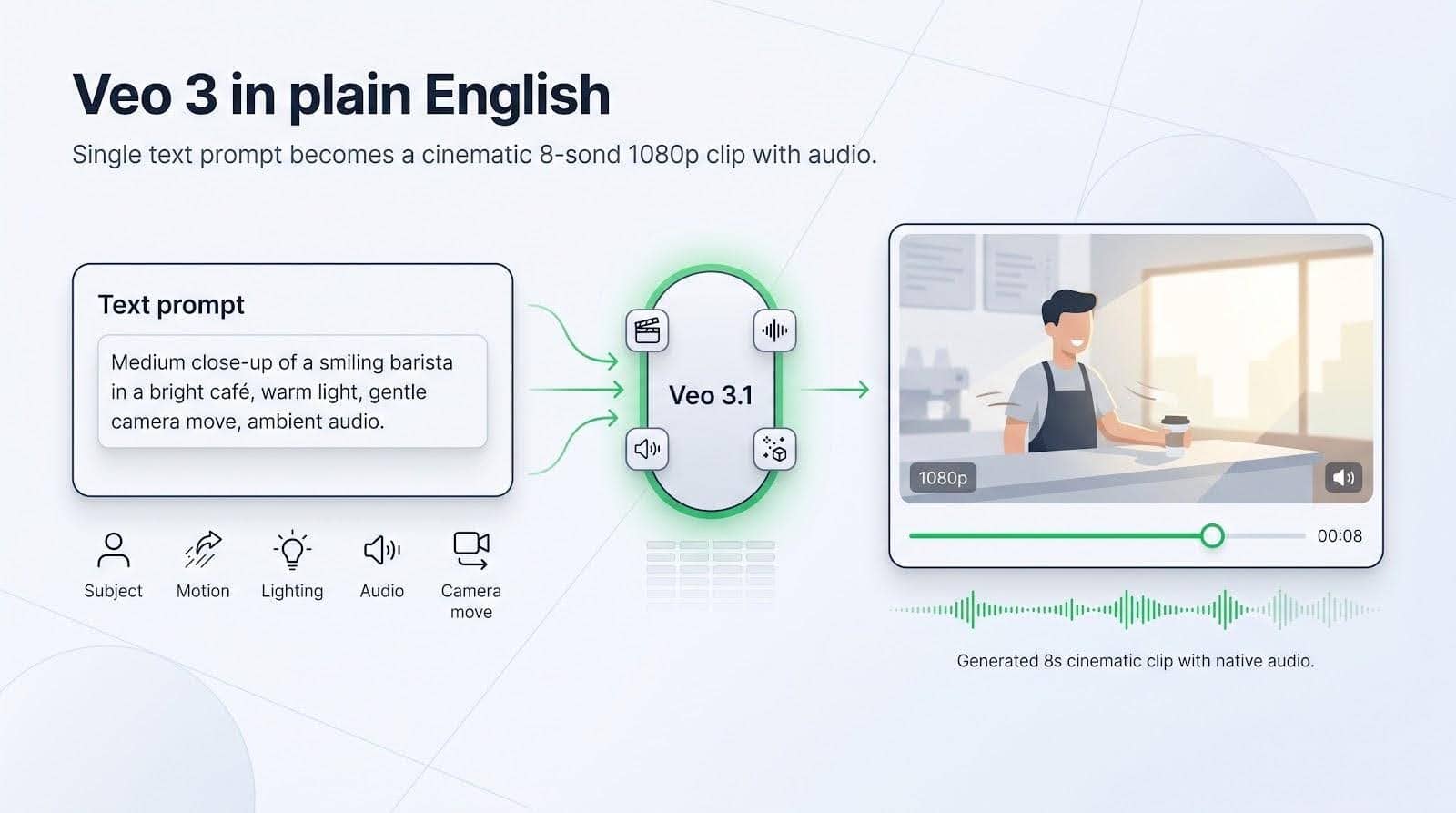
Access once meant pricey enterprise credits. Today, wrappers such as Leonardo.ai, Nim, and Google’s Vids app offer free trials or sub-$20 plans, putting the tech within reach of solo marketers and indie teams.
One catch: Veo is literal. A vague prompt produces a vague result. In the next section we’ll share the simple scoring system we used to pick three workflows that protect both quality and budget.
How we picked our winners
We reviewed more than a dozen official guides, blog summaries, and creator forums, then tested every tactic against two blunt questions: does it save money, and does it improve output quality?
First, we confirmed core capabilities. Veo 3.1’s release notes promise sharper visuals and richer audio, so any workflow had to access that upgrade instead of an older model.
Next, we mapped real user pain. Reddit threads are full of prompts blocked by strict filters or budgets drained by repeated tries. Those stories offered a street-level look at common bottlenecks.
Finally, we scored each platform on four clear metrics: out-of-pocket cost, creative range, prompt reliability, and ease of onboarding. When Leonardo.ai provided Veo’s full engine plus an unlimited fast-draft mode for about ten dollars, it rose to the top.
The outcome is a focused top three that balances budget, impact, and workflow sanity. In the next section we examine the first (and strongest) option.
#1 Leonardo AI + Veo 3: your pocket-friendly cinematic studio
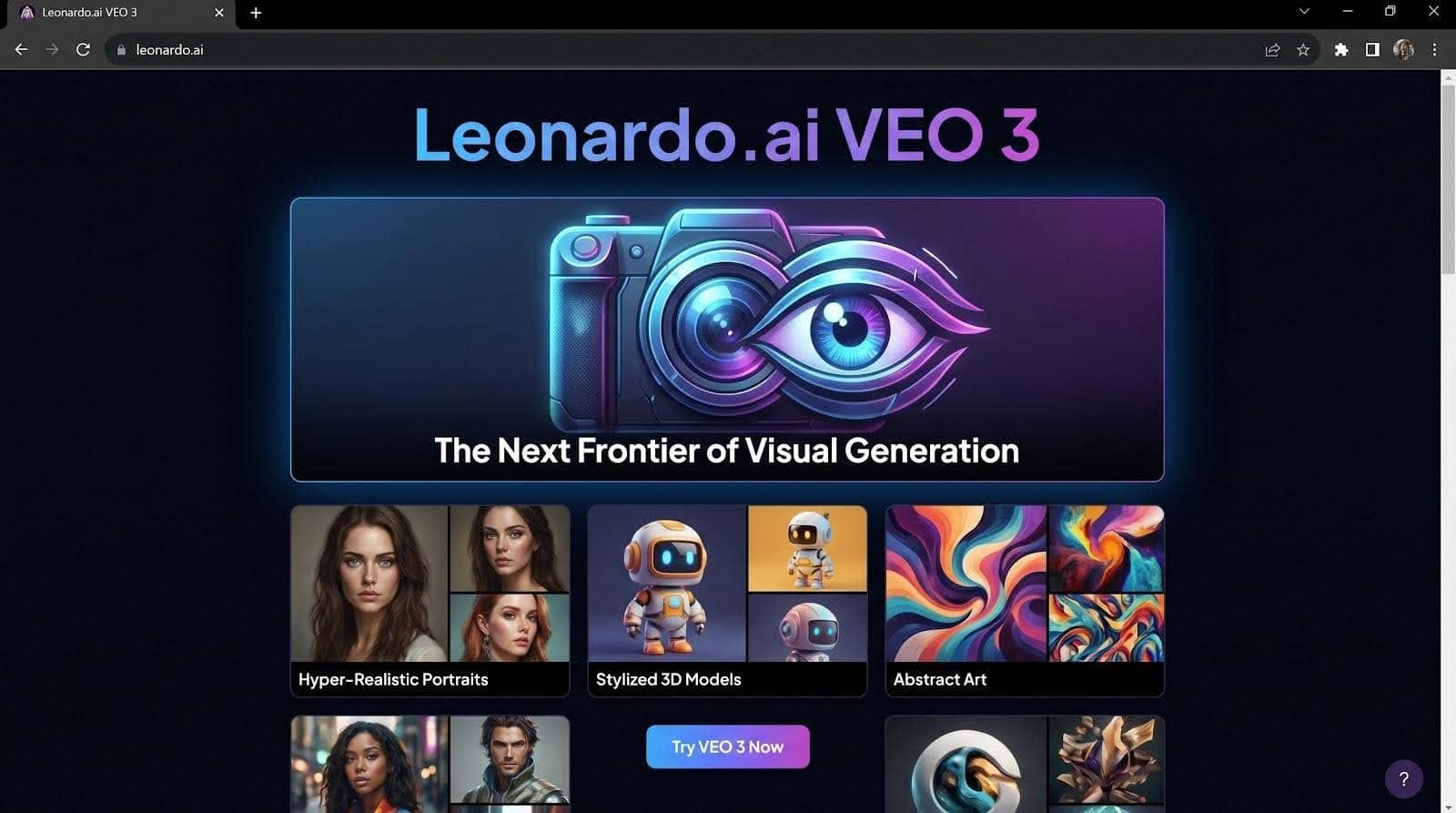
Leonardo.ai combines Google’s Veo 3 with a drag-and-drop dashboard, turning prompt ideas into crisp 1080 p video with synced audio, features highlighted on Leonardo AI Veo 3. For about ten dollars a month you unlock the full engine, and its Veo 3 Fast tier drops draft renders to just 2,000 tokens, saving 500 tokens compared with the standard 2,500-token HD pass; that discount lets you iterate before committing to the final cut.
Price is only part of the appeal. Leonardo.ai adds guardrails like template prompts, reference-image slots, and start or end frame controls, trimming guesswork and lifting quality.
A prompt formula that never wastes tokens
Think of a cinematic prompt as eight puzzle pieces: subject, action, setting, style, camera, lighting, motion, and audio. We thread them into one tight paragraph:
A lone hiker climbs a snowy ridge at dawn. Cinematic 35 mm look, golden rim light. Wide drone shot slowly tracking the ascent. Wind howls; boots crunch in the snow. No on-screen text.
Short, vivid, and specific. Leonardo’s free draft mode lets you tweak one element at a time, such as the camera angle or colour grade, until every frame works. Then switch to full-quality output.

Workflow in three quick passes
- Draft in Veo 3 Fast. A low-fidelity clip appears in about 20 seconds, perfect for checking composition.
- Refine the wording or add a reference image if the product needs precise branding.
- Render the final 1080 p version. Total cost: a few dollars on a basic plan.
Why Leonardo tops the list
It blends high-quality visuals with predictable pricing while avoiding the usual AI video headaches, such as API setup or runaway credit bills. You focus on storytelling; the platform handles the tech and keeps the budget steady.
#2 The free looping social-video hack
Great video can happen without a budget; sometimes it only needs a creative detour.
This workflow turns a single still image into a smooth eight-second loop that grabs attention on TikTok or Instagram. Every tool in the chain offers free credits, so your spend stays at zero.
How the loop trick works
Start with a reference frame. It can be a stock shot, an AI-generated product photo, or even a refined sketch. That picture becomes both the first and last frame, so when the clip ends it resets invisibly and replays.
Veo 3.1’s end-frame control carries the weight. Upload the image twice, once as the opening frame and again as the closing frame, then describe the motion you want between them:
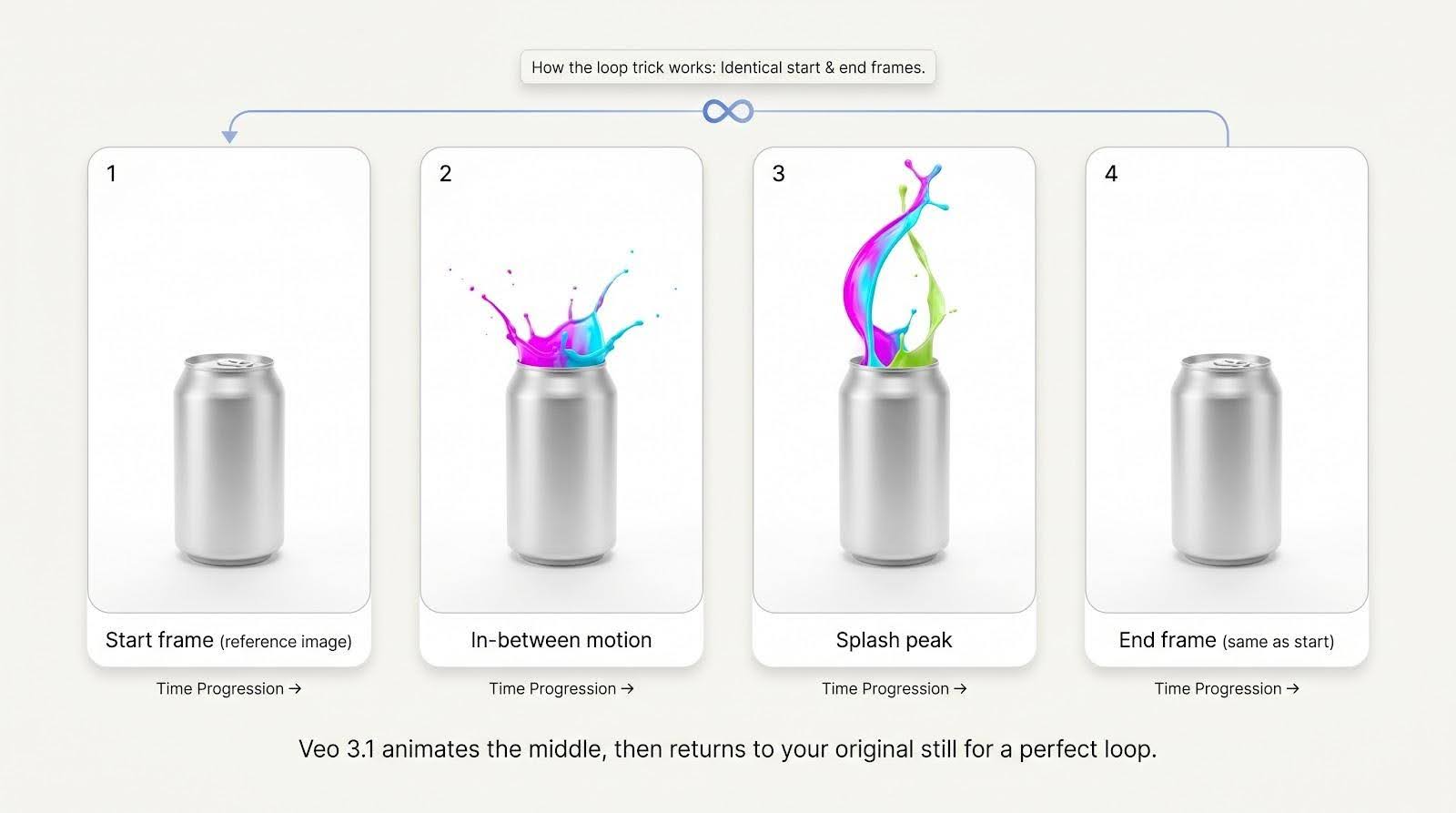
A closed soda can rattles, bursts in slow motion, neon paint splashes upward, bright studio lighting, pure white backdrop, no on-screen text.
Because the AI must land on the exact same image it began with, everything aligns: lighting, camera angle, and droplet positions. The result feels like a magic GIF, but it streams in crisp 1080 p video.
Zero-cost tool stack
You have options. Google Vids and Flow currently grant a handful of free Veo generations. WeryAI provides test credits as well. Generate the loop there, download, and post; no subscription required.
If your free quotas expire, use the same prompt in Leonardo’s fast draft mode to preview timing, then spend 2,500 tokens for the final pass. Even that route stays under four dollars.
Why this ranks second
Free is tough to beat, but the loop hack earns silver because it is specialised. It excels at eye-catching social fillers, not full narrative ads. Still, the ability to post endless, perfectly looping clips without touching After Effects can lift engagement significantly.
#3 Dialogue magic on a dime
Video with sound stops the scroll, and spoken lines build trust. Veo 3 includes a native voice engine, so you can script a short conversation and watch the model lip-sync it, with no actors, mics, or editing suite required.
Nim is a browser-based front end for Veo. Sign up and you receive a bundle of free credits. Each standard-quality render costs about 10 credits. Upgrading to the Starter tier, roughly fifteen dollars a month, unlocks around 150 clips, so each finished video costs close to ten cents.
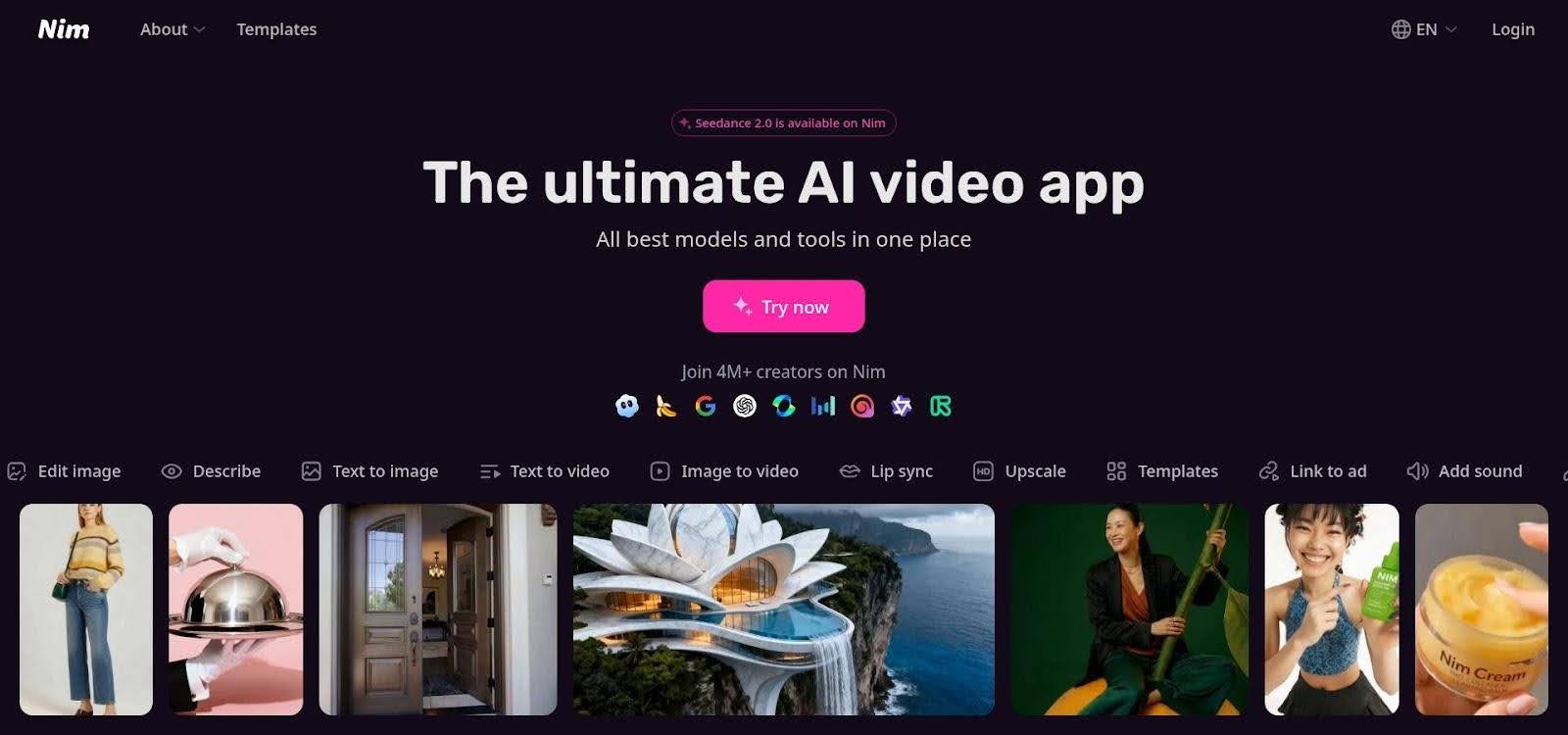
Nim AI Veo 3 dialogue video generation interface screenshot.
Writing prompts that talk back
Veo treats quoted text as spoken lines. Keep each utterance brief and label the speaker:
Bright café, morning. Medium close-up on a smiling barista and customer. Barista: “The usual cappuccino?” Customer: “Yes, and add a croissant, please.” Gentle café ambience in background.
Those two sentences give the model everything it needs: setting, camera, speakers, dialogue, and supporting sound. In tests the lips matched convincingly, and Veo blended subtle chatter under the voices for realism.
If the first take feels off, adjust the wording in free-credit mode until timing clicks, then run the HD render and download.
Beating the safety filter
Community forums note that certain words or props can trigger blocks, and the word “bed” alone has stalled an innocent scene. Nim’s moderation is slightly looser than Google’s own UI, yet it follows the same policy. The fix is simple: rephrase. Swap “bedroom” for “cozy loft,” or remove any brand names and the model proceeds.
Why dialogue ranks third
Voice adds selling power, but it is a specialised need. For general B-roll you will not miss it, which is why this workflow follows our cinematic all-rounder and the looping social hack. When talking heads are required, though, typing a script and letting AI handle both visuals and audio is hard to beat.
Stacking the options: which workflow fits your day?
We now have three clear roads to high-impact AI video, each tuned for a different job. Before choosing, compare their cost, creative scope, and learning curve. A quick glance at the table below will show where to start and when to switch.
| Criteria | Leonardo + Veo 3 | Free loop hack | Nim dialogue flow |
|---|---|---|---|
| Up-front cost | About $10 for a month of tokens | $0 with free credits | $0 starter credits or $15 for 150 HD clips |
| Best use | Cinematic promos, multi-purpose content | Eye-catching loops for socials | Talking scenes, testimonials, mini skits |
| Learning curve | Easiest (templates and draft mode guide you) | Medium (two tools, reference frames, more tinkering) | Easy (fill-in scripts, press render) |
| Output quality | 1080p visuals plus native audio | 720–1080p, depends on your reference image | 1080p, solid voices, ambient sound |
| Big limitation | Eight-second cap still applies | Loop trick works only for short visuals | Occasional filter flags on certain words |
If you create video weekly and need broad range, Leonardo is the safest first step. Social teams chasing viral loops can stay cost-free with the reference-image route. Anyone selling through story and dialogue should bookmark Nim for its one-click voice generation.
Universal prompt-crafting tips
Great tools shine when the brief is clear. Follow these principles in any workflow to cut retries, avoid filter errors, and pull the sharpest visuals from each token.
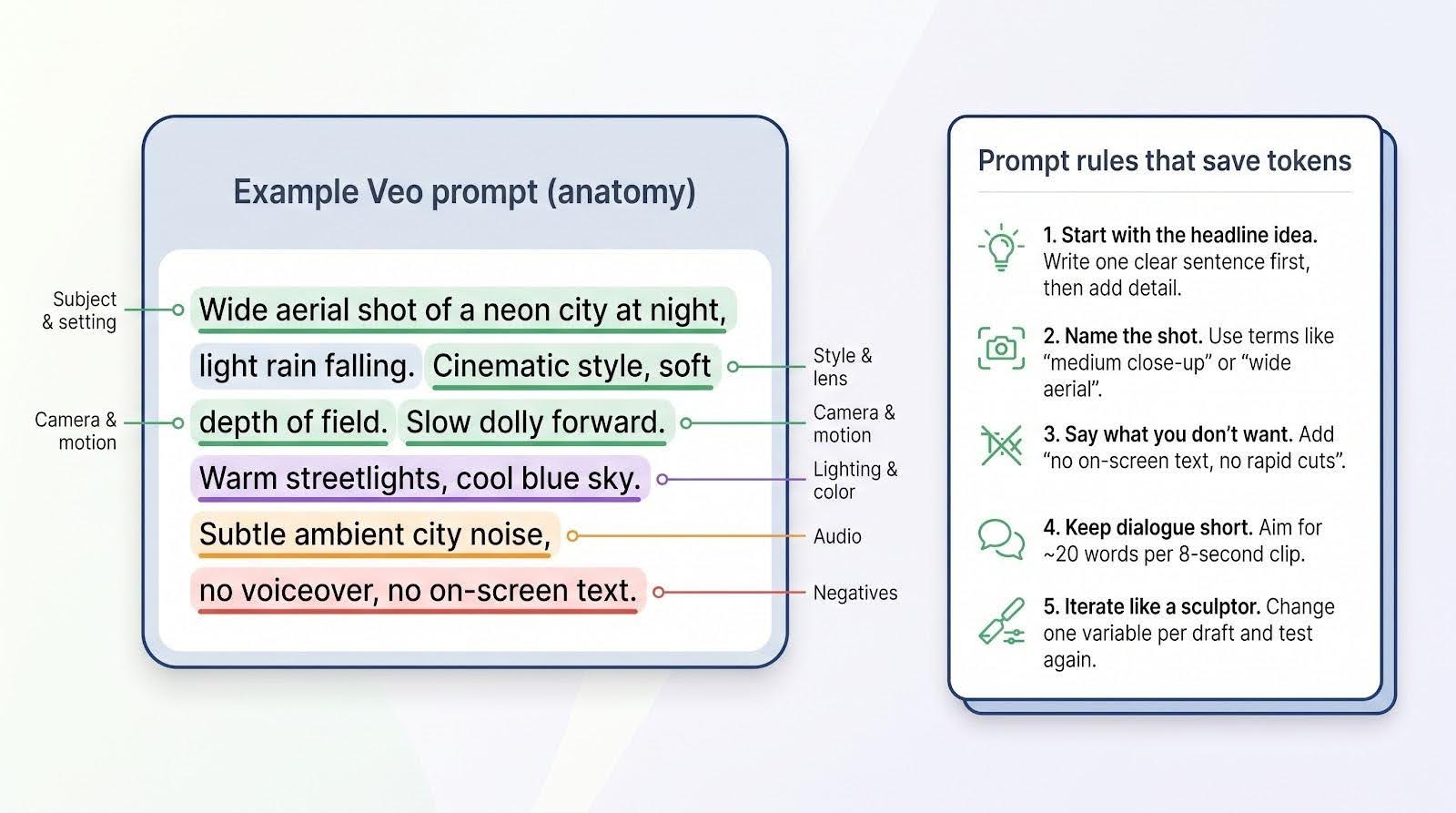
Start with the headline idea in one sentence. Picture yourself pitching a scene to a friend: “A drone sweeps over a neon city at night.” Once that core is tight, layer in specifics such as camera move, lighting, mood, and sound cues. Order matters less than clarity, but avoid packing more than two concepts into a clause.
Name the shot. Terms like “medium close-up,” “wide aerial,” or “static tripod” tell Veo exactly where to place its virtual lens. Skip this and the model may choose an angle you never intended.
State what you don’t want. A line like “no on-screen text, no rapid cuts” spares you extra renders. Negative prompts feel picky, yet they block garbled captions or jittery edits that force a redo.
Keep dialogue short. Eight seconds fits roughly twenty spoken words. Anything longer drifts out of sync. Break speech into a back-and-forth, and cue actions (“she nods, then replies”) so the AI adds natural pauses.
Iterate like a sculptor. Change one variable per draft: adjust lighting and test, swap the lens and test again. Use free draft modes in Leonardo or starter credits in Nim for quick checks. When every element clicks, pay for the HD pass and publish with confidence.
Conclusion
AI video creation no longer demands studio-level budgets or technical deep dives. With the right platform and a well-structured prompt, you can deliver cinematic visuals, seamless loops, or dialogue-driven clips in minutes, and for pennies on the traditional production dollar.
Choose the workflow that fits today’s goal, iterate smartly, and let Veo handle the heavy lifting while you stay focused on storytelling.
Quick-fire FAQ
Can I stretch Veo clips past eight seconds?
Yes, but not in a single render. Chain multiple clips in your editor or use Veo’s “extend” feature where available. Keep prompts consistent so transitions feel smooth.
What resolution can I expect?
All three workflows deliver 1080 p, crisp enough for YouTube and event screens. If you need 4 K, upscale afterward; quality loss is minimal for social posts.
Is the output mine to use commercially?
Leonardo and Nim grant full commercial rights on paid plans, and Google’s consumer terms allow promotional use from Vids and Flow. Always review each platform’s latest policy, but in practice you own what you generate.
Why did my innocent prompt get blocked?
Veo’s safety net trips on certain keywords; even “bed” has triggered flags. Swap the term for a neutral synonym or rephrase the scene. If it still fails, simplify and add detail back step by step.
How many iterations should I budget?
Plan on three to five drafts for a polished result. Fast-draft modes cut token costs, and every tweak sharpens the final cut.
Still stuck? Save the prompt, step away, and read it aloud an hour later. Fresh eyes and ears reveal vagueness every time.