

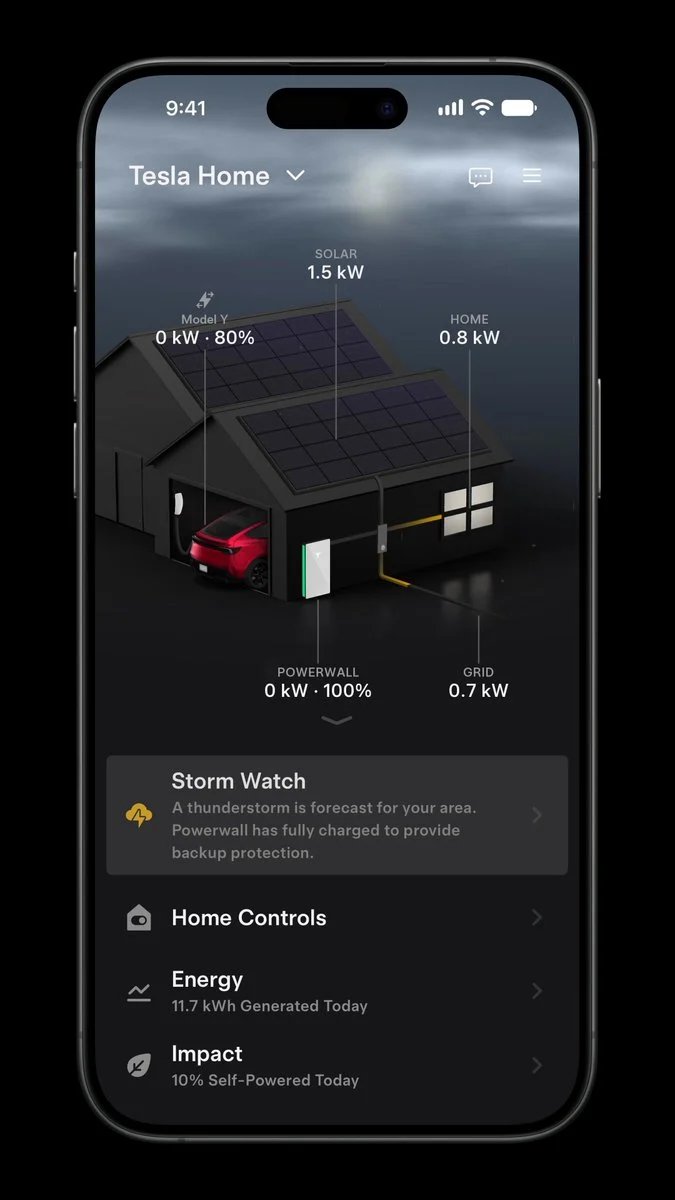
Tesla Energy reminded Powerwall owners on November 23 that Storm Watch mode exists for exactly the moments when the grid is most likely to fail — automatically charging the battery to full capacity before severe weather arrives. If you own a Powerwall and haven’t thought about this feature since installation, here’s everything you need to know before the next storm rolls in.
What exactly does Storm Watch mode do?
When a severe weather event is detected, Storm Watch overrides your Powerwall’s normal charge schedule and reserve settings, pushing it to charge to 100% capacity as quickly as possible. It also prioritizes excess solar generation toward topping off the battery before directing power elsewhere — including to a Tesla vehicle charger. The goal is simple: maximum stored energy before the grid potentially goes down.
How does the Powerwall know a storm is coming?
The system pulls from multiple data sources — the National Weather Service, third-party weather APIs, and local utility alerts — and triggers only when an official severe weather watch or warning has been issued. The list of qualifying events is broad: hurricane watches and warnings, tornado warnings, tropical storm warnings, winter storm warnings, blizzard warnings, flash flood warnings, red flag fire warnings, high wind warnings, and ice storm warnings all qualify.
Will I know when it activates?
Yes. The Tesla app sends a push notification both when Storm Watch activates and when it deactivates. You don’t need to monitor weather forecasts yourself — the system handles detection and alerts you automatically. That said, it’s worth making sure your app notifications are enabled so you don’t miss the alert.
Does Storm Watch work with all Powerwall operating modes?
Storm Watch functions as an automatic overlay on top of whichever primary mode you’re running — Backup-Only, Self-Powered, or Time-Based Control. It temporarily takes precedence over your normal settings for the duration of the weather event, then reverts once the threat passes. You don’t need to switch modes manually when a storm is forecast.
What if Storm Watch doesn’t trigger automatically?
If severe weather is approaching and the feature hasn’t activated on its own, you can force the same outcome manually. Open the Tesla app, switch your Powerwall’s operating mode to Backup-Only, and drag the Backup Reserve slider to 100%. That tells the system to treat the full battery capacity as protected backup power and charge to that level immediately. It’s the same end result as an automatic Storm Watch trigger.
Can I turn Storm Watch off if I don’t want it?
Yes — the feature can be enabled or disabled entirely through the Tesla app. You can also manually activate it for a scheduled duration if you want to pre-charge ahead of a storm that hasn’t yet triggered an official weather warning. For most owners, leaving it on is the safer default; the only scenario where disabling it makes sense is if you’re on a time-of-use rate plan and want tighter control over when your Powerwall charges.
Storm Watch has been part of the Powerwall feature set for some time, but Tesla Energy’s reminder is well-timed heading into late-season storm patterns. If you set up your Powerwall and never revisited the app settings, now is a good moment to confirm the feature is enabled — our earlier Storm Watch deep-dive covers the setup in more detail, and this piece on Savings Mode explains how Storm Watch interacts with cost-optimization settings during normal conditions.
Sources & reporting notes
The links below identify the material source records used for this report.
- @teslaenergy on X (2026-11-23T23:41:31.000Z) — Direct source
Source links are preserved as published or accessed. See our editorial standards and corrections policy.
BASENOR Newsroom
The BASENOR Editorial Desk covers Tesla, SpaceX, and related technology, curating reporting from primary sources — official accounts, regulatory filings, and software release data. Every article passes source-record and fact-checking review before publication. About the newsroom.
This report was curated by the BASENOR Editorial Desk from the sources listed above. Read our editorial standards or email editorial@basenor.com to report an error.












Leave a Reply